
Text frames, bounds & best practices
How the rendering engine and the InDesign→serial conversion actually interact — why a text frame's size is the hard ceiling for any override, and how to structure InDesign text so overrides stay clean and predictable.
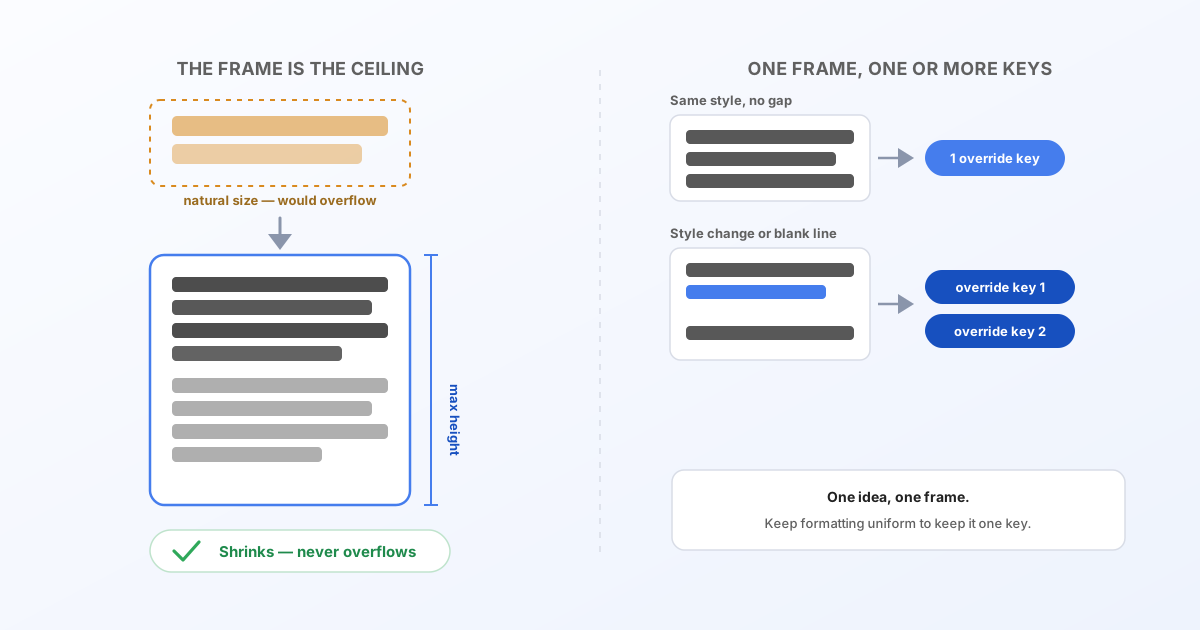
Overriding text (a translation, a name, a price) looks simple from the API side — you send a string, you get pixels back. Two things the engine does under the hood decide whether that string actually lands the way you expect: how big the text is allowed to get, and how many pieces your InDesign text frame turned into. Both are worth understanding before you build automation around a document.
A frame's size is the maximum bound, not a suggestion
When an InDesign text frame is converted, it becomes a serial text element with a fixed width and height — captured once, at conversion time, from the original frame. Every render after that — including every textOverrides value you ever send — works inside that same box. The engine has exactly two levers to make text fit: shrink the font size, and wrap into more lines. It never grows the box itself, no matter how long the replacement text is.
That means: if your English placeholder fits snugly and the German translation runs 30% longer, the frame doesn't expand to make room — the text shrinks (or wraps further) to stay inside the space you gave it in InDesign. This is precisely what makes the auto-fit engine useful (no manual resizing per language), but it also means the frame you draw is a real ceiling, not a hint.
Best practice: size your text frames with headroom for the longest value you'll ever send through them — the longest language, the longest name, the longest price string — not just the sample text you happened to design with. Auto-fit will shrink shorter values back down automatically; it can't invent space that was never there.
One text frame doesn't always mean one override key
The converter doesn't always turn one InDesign text frame into one serial element. Depending on what's inside it, a single frame can become several elements — and each one gets its own key in textOverrides. This catches people off guard more than the bounds issue above, because it's invisible until you actually look at the converted result.
By default, a frame's content only splits into a new element at an existing paragraph break or forced line break, and only when:
- the character formatting (font, size, weight, style, color, letter-spacing) or line spacing differs across that break, or
- it's a blank line, or
- InDesign paragraph spacing (space-before/space-after) is set on either paragraph.
Consistently-formatted paragraphs with no blank line and no paragraph spacing between them are actually merged into one multi-line element — a subtlety worth knowing, since it means simply pressing Enter between two lines doesn't automatically split them.
What this means in practice:
- If you want a single
textOverrideskey to control a whole heading or paragraph, keep its formatting uniform end to end and avoid paragraph spacing or blank lines inside it. A stray bold word or a different-colored phrase is fine to want, but if it sits at a line break, it becomes a split point — what you meant as "one sentence" quietly becomes two override keys. - If two parts of what looks like one frame are conceptually different content — a headline and a caption, say — make them separate InDesign text frames from the start. It's cleaner to design that intent explicitly than to have the converter split a single frame for you and have to discover the extra key afterwards.
- In short: one text frame per what is, in fact, one piece of text. If it reads as one idea, keep it one frame with uniform formatting; if it's really two ideas, give it two frames.
You don't have to guess at any of this — load your file into the Convert tool or the API playground and open the text-overrides table. It shows exactly one row per element the conversion actually produced, with the key each one will use — check it before you wire up automation, not after.
Mixed formatting needs a different override shape
If a text element does end up with mixed formatting inside it (a bold word, a linked phrase), it's in "rich text" mode, and overriding it takes a small structured array instead of a plain string — see Rich text format for overrides for the exact shape.
Next steps
- Translate InDesign projects automatically and Automate InDesign projects — put this into practice.
- Full API reference for
textOverridesand every other render option.